
In the Ampio Designer tool, weather stations are configured in the universal software of the M-CON-485-s module.
First, connect the station to the M-CON-485-s module. The station and module must be powered in accordance with the documentation. Then open Ampio Designer.
In the module parameters, set the speed, stop bits and parity according to the manufacturer’s default settings (if not changed by the user).
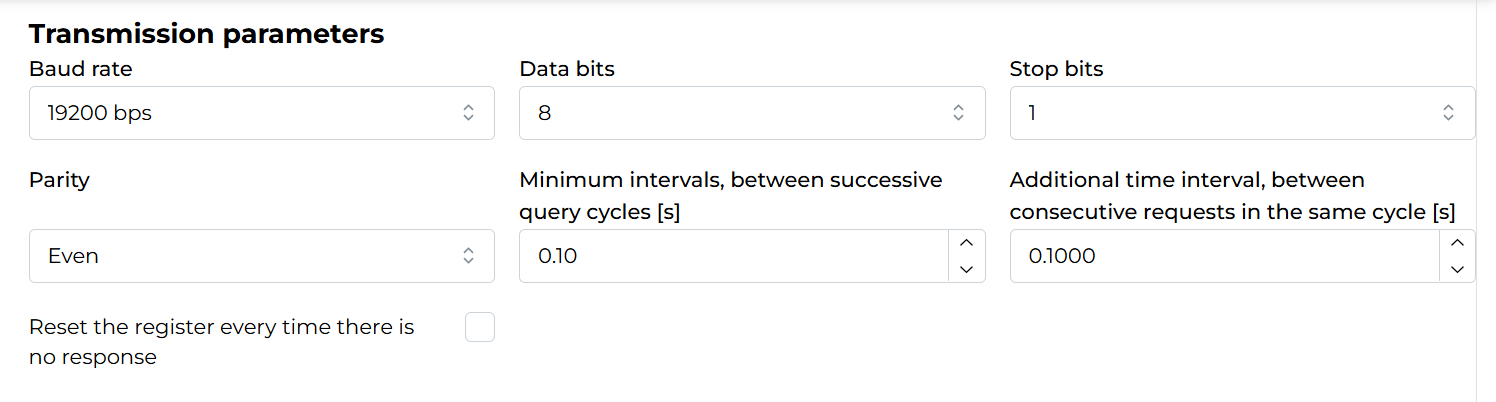 Click to enlarge and open in a new tab.
If you want to use predefined queries saved in a previously prepared list, download the file at the end of this manual. Then, in Ampio Designer, go to Functionality for the M-CON-485-s module, and select the Modbus queries sub-tab. In the upper right corner, select the Import configuration button and choose the downloaded file.
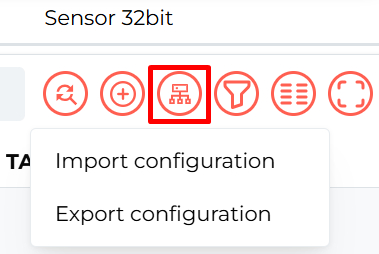 Click to enlarge and open in a new tab.
If the user wants to use a dedicated object in the mobile application, the sensors should be set in the correct order:
To display the station object in the mobile application, go to the APPLICATION tab and create an object in the selected room by clicking + and Add new object.
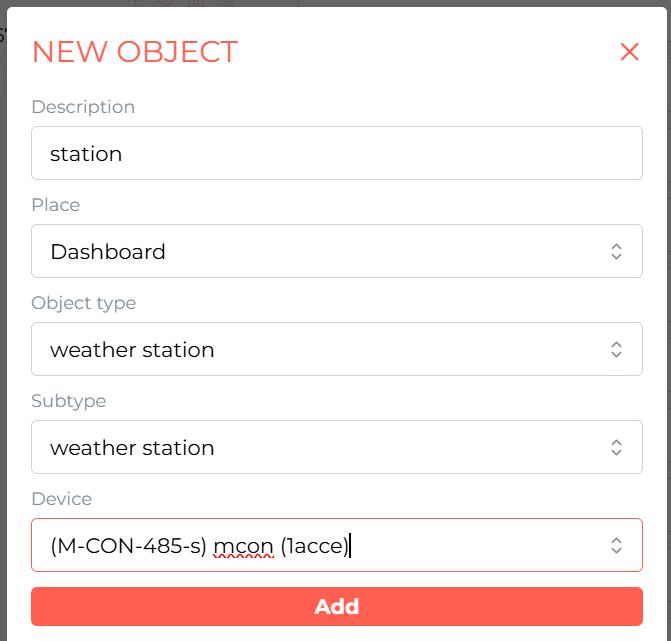 Click to enlarge and open in a new tab.
If all steps have been completed correctly, the readings from the weather station should now be visible in the mobile application.
 Click to enlarge and open in a new tab.
Files to download: